当前位置:网站首页>How to install and start VNC remote desktop service on cloud GPU?
How to install and start VNC remote desktop service on cloud GPU?
2022-08-03 17:38:00 【InfoQ】
The platform does not provide a desktop by default. If you need desktop services, you can install and use it according to the following documentation steps.
The platform provides the xfce4 desktop of Ubuntu in the installation documentation.
.
Hengyuan cloud platform address: https://gpushare.com/
Installing the desktop
Execute the following command to install the desktop.
#Download installation script
~# curl -OL https://download.gpushare.com/download/platform/install_desktop/install_desktop

#InstallThe script is given execution permission
~# chmod +x ./install_desktop

#Execute the installation desktop script. The installation speed depends on the bandwidth of the instance. The fastest time is 5-10 minutes, and the slowest may be required30-60 minutes.
~# ./install_desktop

#At the end of the installation, you will be prompted to enter the VNC password. The password needs to be defined by yourself. Later, you need to log in to the desktop through VNC. In the document, gpushare is used as the VNC password.
Please enter the VNC connection password, which needs to be customized: gpushare
Your VNC password is: gpushare
spawn vncpasswd
Password:
Verify:
Would you like to enter a view-only password (y/n)? n
Start the desktop
After the desktop is installed, it needs to be managed through VNC, so it needs to startAfter the VNC service, connect the instance desktop through VNC.
#Execute the manage_vnc command to view the usage method
~# manage_vnc

 usage:
 1): VNC Server startup command
 manage_vncstart

 2): VNC Server shutdown command
 manage_vnc stop

#Then execute manage_vnc start to start the VNC service
~# manage_vnc start

The VNC server has been successfully started!
Accessing the desktop
After the VNC service is started, the instance's port 8080 is occupied by default, open the console - "clickA custom service can access desktop services through a browser.

Click vnc.html to enter the VNC page.

Click to connect after entering the VNC page.

Enter at the end of installing Desktop ServicesCustomize the entered VNC password and click Send Credentials to log in.

The following is displayed and the desktop has been successfully logged in

Desktop settings (important)
1.Modify the screen-off time of the instance desktop
By default, if the desktop is not operated for a long time, the screen will be off. After the screen is off, the desktop cannot be activated by clicking the mouse.Restart the VNC service, so the first thing to do after accessing the desktop is to modify the desktop screen-off time to not turn off the screen.
Click on Applications -> Settings -> Light Locker Settings in the upper left corner, and then change the following options to Never.

2. Create BrowseBrowser shortcut
When the desktop service is installed above, Firefox and Chrome browsers are installed at the same time, here they are created as shortcuts to the desktop.
(Create Chrome browser shortcut) Right-click ->Create Launcher
The following options, the Name option is filled in Chrome, and then it will jump out of ChromeBrowser, click on the browser that pops up below.Command is the command to start the browser. You need to add the –no-sandbox command after the automatically generated command, otherwise the Chrome browser will crash when it starts.

(create Firefox browser shortcut) Click the right mouse button->Create Launcher
Name option to fill in Firefox, jump out of the Firefox browser, and click the browser that jumps out below.There is no need to change the Command command of the Firefox browser, just click Create in the lower right corner.
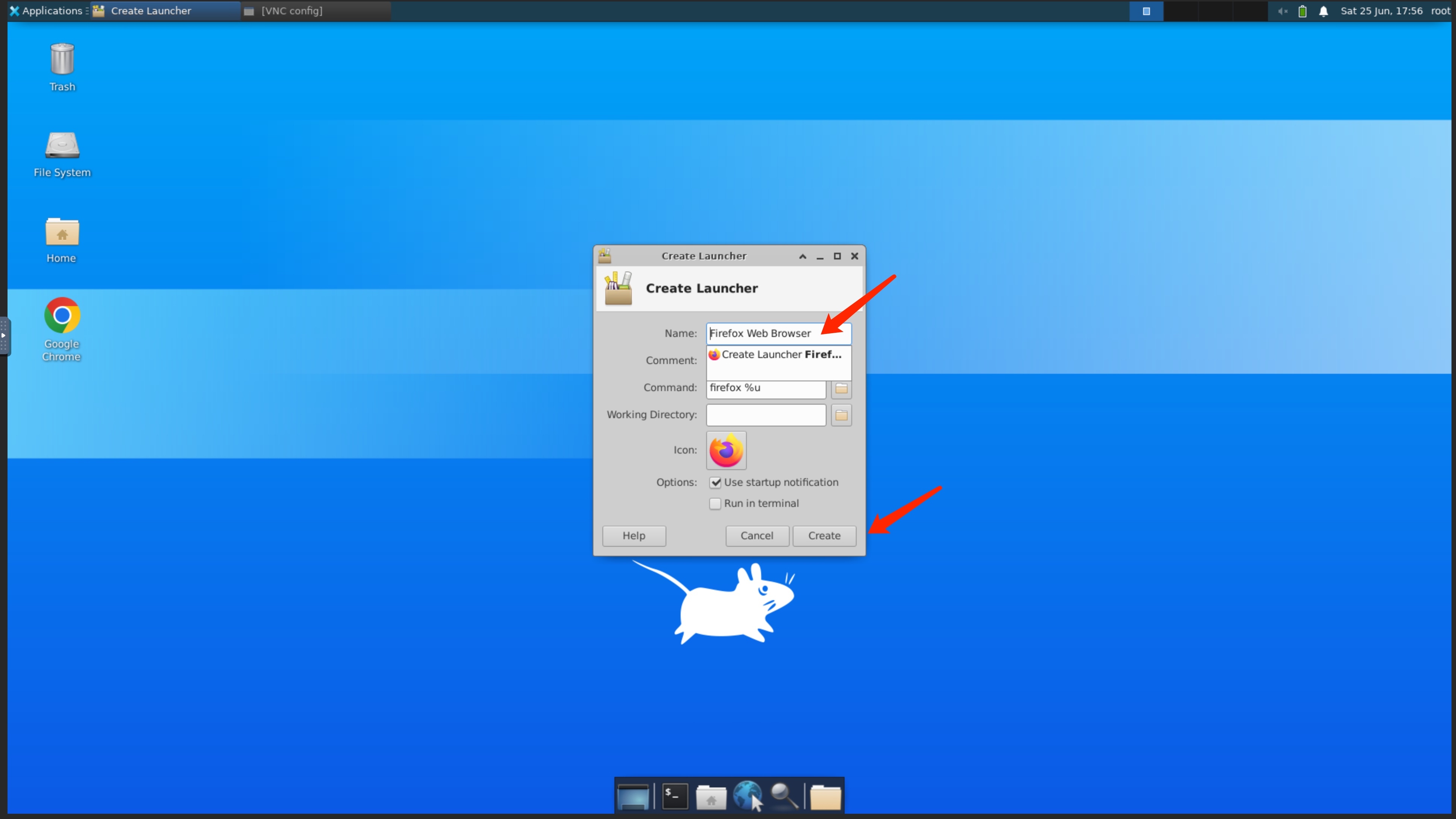
After the creation is complete, the desktop will displayOpen the icons of the two browsers created and click Run.
Tips: Modify the browser search engine
After the browser is installed, the default is the google search engine, which needs to be changed to a domestic accessible search engine, otherwise the search will time out.
Installation tools (optional)
Install VScode
#Download VsCode
~# sudo wget https://az764295.vo.msecnd.net/stable/30d9c6cd9483b2cc586687151bcbcd635f373630/code_1.68.1-1655263094_amd64.deb

#Install VsCode
~# sudo chmod +x code_1.68.1-1655263094_amd64~.deb/>sudo apt-get install ./code_1.68.1-1655263094_amd64.deb
Create a VsCode desktop shortcut, fill in the code with Name, then select the jumped out VsCode, and then add --no-sandbox command to start Command.

Then click on the VsCode added to the desktopTo use

边栏推荐
- 高效的组织信息共享知识库是一种宝贵的资源
- 深度学习跟踪DLT (deep learning tracker)
- 目标检测-YOLOv3理论讲解
- 工程仪器设备在线监测管理系统常见问题和注意事项
- 并发高的情况下,试试用ThreadLocalRandom来生成随机数
- 关于vscode安装包下载太慢解决方法
- Web3 security risks daunting?How should we respond?
- 一文带你弄懂 CDN 技术的原理
- EMQX Newsletter 2022-07|EMQX 5.0 正式发布、EMQX Cloud 新增 2 个数据库集成
- CC2530_ZigBee+华为云IOT:设计一套属于自己的冷链采集系统
猜你喜欢





随机推荐
国内首发可视化智能调优平台,小龙带你玩转KeenTune UI
LyScript 内存交换与差异对比
sphinx coreseek的安装和php下使用
软件测试<用例篇>
The strongest distributed lock tool: Redisson
华为ECS云服务器上安装Docker及部署Redis详细教程【华为云至简致远】
303. Range Sum Query - Immutable
JVM参数设置
DataWorks 标准版怎样实现SQL代码的复用?
【数仓】数据质量监控
浅谈Service Mesh对业务系统的价值
PMP试题 | 每日一练,快速提分
node connection mongoose database process
“68道 Redis+168道 MySQL”精品面试题(带解析),你背废了吗?
【engine】RtcSyncCallback回调、回调容器RtcCallbackContainer及MediaPacketSenderImpl 中回调使用
高效的组织信息共享知识库是一种宝贵的资源
php之相似文章标题similar_text()函数使用
ICDAR competition technology sharing
图像质量指标:PSNR、SSIM、MSE
【技术白皮书】第二章:OCR智能文字识别回顾——自然语言文本发展历程