当前位置:网站首页>微信小程序发布动态页面模板
微信小程序发布动态页面模板
2022-08-06 21:10:00 【Socialphobia_FOGO】
在之前的博文中,提到了开发的垃圾指纹微信小程序。
博文链接如下:垃圾指纹介绍
1 简介
由于功能需求,需要在小程序中开发社区打卡模块。打卡模块中上传发布的界面是必不可少的。于是利用flex布局设计了上传动态的页面。页面截图如下:
由于是模板分享,这里也不做过多介绍了,通过代码来说明吧。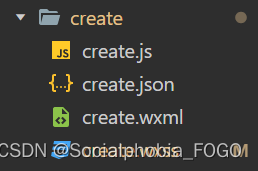
页面主要有四个文件,分别是create.js、create.json、create.wxml、create.wxss。
2 代码
create.wxml
<!--pages_sceond/create/create.wxml-->
<view class="boss1">
	<textarea bindinput='textinput' placeholder="这一刻的想法..." value="{
     {comment}}">
	</textarea>
</view>

<view class="boss2">
    <image src="{
     {imageList}}" style="width: 300rpx; height: 300rpx" bindtap="uploadImage"></image>
</view>

<text>\n</text>

<view class="boss3">
    <view class='line'></view>
</view>

<view class="boss4">
    <image src="/image/create_img/location.png" style="width: 70rpx; height: 70rpx"></image>
    <text>({
   {longitude}},{
   {latitude}})</text>
    <image src="/image/create_img/right.png" style="width: 70rpx; height: 70rpx"></image>
</view>

<view class="boss3">
    <view class='line'></view>
</view>

<view class="boss4">
    <image src="/image/create_img/time.png" style="width: 70rpx; height: 70rpx"></image>
    <view>{
   {startDate}}</view>
    <image src="/image/create_img/right.png" style="width: 70rpx; height: 70rpx"></image>
</view>

<view class="boss3">
    <view class='line'></view>
</view>

<button class="btn1" bindtap="loadto">发布</button>
create.json
{
  "usingComponents": {}
}
create.wxss
/* pages_sceond/create/create.wxss */
textarea{

    border: 3rpx solid rebeccapurple;
   }

   textarea{

    height:300rpx;
    border: 0rpx solid rebeccapurple;
    position: relative;
   }

   .botsum{

    position:absolute;
    top: 260rpx;
    font-size: 28rpx;
   }

   .line{

    background: #E0E3DA;
    width: 700rpx;
    height: 5rpx;
    }

    .boss3{

        display: flex;
        flex-direction: column;
        justify-content: space-around;
        align-items: center;
    }

.boss4{

    height: 120rpx;
    display: flex;
    flex-direction: row;
    justify-content: space-around;
    align-items: center;
}

.btn1 {

    width: 80%;
    margin-top: 20rpx;
    background-color: rgb(30,144,255);
    color: white;
    border-radius: 98rpx;
  }
  .btn1::after {

    border-radius: 98rpx;
  }
create.js
相关的逻辑代码注释会有解释!
// pages_sceond/create/create.js
var util=require('../../utils/util.js');
const app=getApp()
Page({

    /** * 页面的初始数据 */
    data: {

      imageList: "/image/create_img/picture.jpg",
      startDate: "获取捡拾时间",
      longitude: '',   //经度
      latitude: '',    //纬度
      comment:''
    },
    //点击照片上传图片
    uploadImage:function(){

      var that=this;
      wx.chooseImage({

        count: 1,
        sizeType:['original','compressed'],
        sourceType:['album','camera'],
        success:function(res){

          const tempFilePaths=res.tempFilePaths
          app.globalData.tempFilePaths = tempFilePaths
          that.setData({

            imageList:res.tempFilePaths,
            tempFilePaths:res.tempFilePaths
          })
        }
      })
    },
    //双向绑定文本框的内容
    textinput:function(e){

      this.setData({
     comment:e.detail.value})
    },

    /** * 生命周期函数--监听页面加载 */
    onLoad: function () {

        var TIME = util.formatTime(new Date());
        this.setData({

          startDate: TIME,
        });
        var that = this;
      wx.getLocation({

        type: 'wgs84',
        success: function (res) {

            that.setData({

                latitude: res.latitude,//经度
                longitude: res.longitude//纬度
            })
            console.log(res,'经纬度')

        },
        fail: function () {

            console.log('小程序得到坐标失败')
        }
    })
  },


    /** * 生命周期函数--监听页面初次渲染完成 */
    onReady: function () {


    },

    /** * 生命周期函数--监听页面显示 */
    onShow: function () {


    },

    /** * 生命周期函数--监听页面隐藏 */
    onHide: function () {


    },

    /** * 生命周期函数--监听页面卸载 */
    onUnload: function () {


    },

    /** * 页面相关事件处理函数--监听用户下拉动作 */
    onPullDownRefresh: function () {


    },

    /** * 页面上拉触底事件的处理函数 */
    onReachBottom: function () {


    },

    /** * 用户点击右上角分享 */
    onShareAppMessage: function () {


    },
    loadto:function(){

        wx.uploadFile({

          url:"****",//后端服务器url
          filePath: app.globalData.tempFilePaths[0],
          name: 'image',
          method:"POST",
          header:{

            'content-type':'application/x-www-form-urlencoded'
          },
          //将需要的内容上传至后端
          formData:{

            comment: this.data.comment,
            longitude:this.data.longitude,
            latitude:this.data.latitude,
            startDate:this.data.startDate,
          },
          })
          if (app.globalData.status == 1){

            // 弹窗
            wx.showToast({

              title: '发布成功',
              icon:"none",
              success:function(){

                setTimeout(function(){

                  wx.reLaunch({

                    url: "/pages/trends/trends",//上传成功后期望跳转的页面可自行修改
                  })
                },1500);
              }
            })
      }


  }
})
为防止部分观众没有utils.js文件,这里特地进行附录供没有utils.js的观众使用~
const formatTime = date => {

  const year = date.getFullYear()
  const month = date.getMonth() + 1
  const day = date.getDate()
  const hour = date.getHours()
  const minute = date.getMinutes()
  const second = date.getSeconds()

  return `${
      [year, month, day].map(formatNumber).join('/')} ${
      [hour, minute, second].map(formatNumber).join(':')}`
}

const formatNumber = n => {

  n = n.toString()
  return n[1] ? n : `0${
      n}`
}

module.exports = {

  formatTime
}
除此之外,页面中所用到的icon图标这里也贴出供参考:
picture.jpg
location.png
right.png
time.png
边栏推荐
猜你喜欢
2. Basic concepts of linear tables + basic operations

uniapp九宫格抽奖可控概率效果demo(整理)

cdh6,使用oozie进行spark的jar任务调度

如何使用 saplink 安装其他网站上提供的 ABAP 程序试读版

STM32MP157A driver development | 02-Use sdmmc interface to read and write sd card (hot swap)

口服产品上市叠加成人市场发展,生长激素赛道发展突破口显现

4G DTU的特点及应用方法

s905l3a系列刷armbian 教你从0搭建自己的博客

路由器做有线AP

Harvested the "Innovation Pioneer" of the first computing power conference, what trends did Jinan Supercomputing "Data Storage Cluster System" reveal?
随机推荐
pycharm turn off cursor blinking
中华人民共和国个人信息保护法
硅谷课堂第五课-腾讯云对象存储和课程分类管理
s905l3a系列刷armbian 教你从0搭建自己的博客
【How to use Medooze to realize multi-party video conference】
2. Basic concepts of linear tables + basic operations
[WPF] Combobox default style study notes (Presenter and Trigger)
uniapp 左滑删除效果二、效果一(2个方式自选其一)(整理)
路由器做有线AP
A Preliminary Study on Netgen Volume Meshing and Display of CAD Based on OSG+OCC
单片机开发琐碎知识记录
STM32MP157A驱动开发 | 05 - 基于LTDC接口驱动RGB LCD
pinia 基于插件pinia-plugin-persist的 持久化
openssl官网文档资料
Kotlin - Coroutine Builder CoroutineBuilder
硅谷课堂第六课-腾讯云点播管理模块(一)
Flume (一) --------- Flume 概述
论如何提升学习的能力
Pytest学习-yaml+parametrize接口实战
pinia 模块划分