当前位置:网站首页> echars动态实现散点图并自定义信息提示框
echars动态实现散点图并自定义信息提示框
2022-04-22 06:28:00 【weixin_45411740】
echars动态实现散点图并自定义信息提示框
第一步.获取当前城市的json文件
相关的js文件大家应该都有,这里就不写了
var i="";
var s="https://geo.datav.aliyun.com/areas_v2/bound/"+i+"_full.json"//这个i是我从后台获取的当前地图的编号,获取json的地址为http://datav.aliyun.com/tools/atlas/#&lat=30.316551722910077&lng=106.68898666525287&zoom=3.5, 
只需要修改code编号就可以获取不同地区的地图json
第二步.自定义散点地址,和提示信息的值,当然,你也可以从后台获取,只要设置成相应的格式就可以实现动态地图
    var data= [
           { name: '介休市', coord: [111.925687,37.024147], value: '78',value2: '32' },
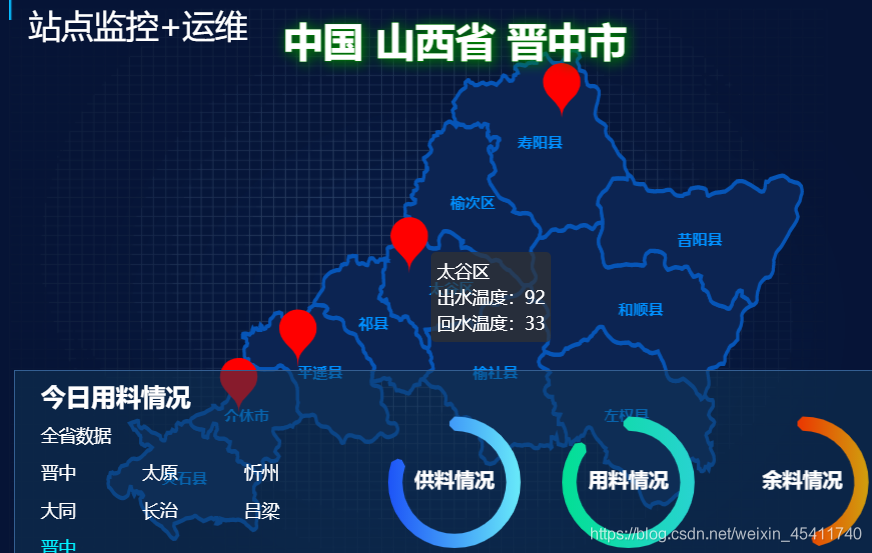
           { name: '太谷区', coord: [112.595903,37.439316], value: '92',value2: '33' },
           { name: '寿阳站', coord: [113.194911,37.894017], value: '55',value2: '24' },
           { name: '平遥古城', coord: [112.158312,37.167077], value: '33',value2: '20' },
]//这里具体的值可以一直添加,在数组后面继续写value3,value4,就可以了,当然你也可以自定义字段名称,坐标的话你可从百度
坐标拾取器获取https://api.map.baidu.com/lbsapi/getpoint/index.html,地址也贴给大家
第三步.初始化地图
            $.get(s, function (chinaJson) {
                echarts.registerMap('city', chinaJson); // 给数据命名,本人理解
                var  chart1 = echarts.init(document.getElementById('main8'));
                chart1.setOption({
                    title: {
                        text: '中国 山西省 '+city,
                        left: 'center',
                        textStyle: {
                            color: 'white',
                            fontStyle: 'normal',
                            fontWeight: 'bold',
                            fontSize: 32,
                            lineHeight: 80,
                            textBorderColor: 'green',
                            textBorderWidth: 1,
                            textShadowColor: 'green',
                            textShadowBlur: 10,
                            textShadowOffsetX: 2,
                            textShadowOffsetY: 2
                        }
                    },
                    tooltip: {        //自定义提示框信息
                        trigger: 'item',
                        formatter:function(params){
                            console.log(params)//这里可以看一下打印出来的数据格式,然后赋值到下面
                            let  text=params.name+"<br>出水温度:"+params.value+"<br>回水温度:"+params.data.value2//这里其实就是一段html代码,div,背景颜色,字体大小都可以设置,设置方法和css一样
                            return text

                        }
                    },
                    series: [{
                        name: 'city',
                        type: 'map',
                        mapType: 'city',
                        markPoint: { //图表标注。
                            label: {
                                normal: {
                                    show: false,
                                },
                                emphasis: {
                                    show: false,
                                }
                            },
                            itemStyle: {
                                normal: {
                                    color: 'red'
                                }
                            },
                            data:data//自定义散点图,这里把定义好的或者后台传过来的数组放这里就好了
                        },
                        roam:true,
                        selectedMode: false,//single 表示单选;multiple表示多选 默认flase不选
                        label: {
                            normal: {
                                textStyle: { fontSize: 12,
                                    fontWeight: 'bold',
                                    color: '#0090FF' }
                            }
                        },
                        itemStyle: {
                            normal: {
                                borderWidth:3,
                                areaColor:'#0C2452',
                                label: {
                                    show: true,//默认是否显示省份名称
                                },
                                areaStyle: {
                                    color: '#0655B7',//默认的地图板块颜色
                                },
                                borderWidth:3,
                                borderColor:'#0655B7',
                            },
                            emphasis: {
                                borderColor: '#2378f7',  // 图形的描边颜色 #2378f7
                                borderWidth: '1',
                                areaColor: '#233F53', // 阴影色 #233F53
                                label: {
                                    show: false,
                                    textStyle: {
                                        color: '#fff',
                                        fontSize: 14,
                                    }
                                },


                            },

                        },


                        //此为加载的数据
                    }]

                });


            });
到这里就做完了
第四步.上一下成果图

版权声明
本文为[weixin_45411740]所创,转载请带上原文链接,感谢
https://blog.csdn.net/weixin_45411740/article/details/114689899
边栏推荐
猜你喜欢
【TCP/IP 一 概述】

About XSS Cross Station
![[site building notes]: insert code snippets in wordpress blog posts and highlight them](/img/2f/d222c77172383fda79f2c109db0bdc.png)
[site building notes]: insert code snippets in wordpress blog posts and highlight them
读取SAE J1939协议数据流

A simple image processor running across C raspberry pie
OBD外接测试设备初始化判断协议类型(SAE J1939/ISO15765/ISO27145)

XSS range clearance

JWT realizes the whole process of login authentication, password encryption and token verification (with source code)
Unity mask click the lower UI game to start guiding Click

Grail layout and double wing layout
随机推荐
ActiveX控件使用总结
小菜鸡的学习笔记——sql注入之sqli-lab边学边练
[TCP / IP four IP internet protocol]
Raspberry Pie: 4.2-inch ink screen
MFC常用格式轉換及函數
Easylogging + + log Library
C-9 structure: the calculation input date is the day of the year
【通信接口 - CAN总线】
【GPS - NMEA-0183协议】
Binary conversion -- learning summary
Solve the problem that the message notification is blocked by the El dialog ($message, $alert, $notify, $confirm)
观察者模式--ApplicationContext
圣杯布局和双飞翼布局
树莓派:模拟iSCSI存储
树莓派:Adafruit的I2C SSD1306 OLED驱动
网页导入3D模型-obj/mtl文件
树莓派:访问Bitlocker To Go加密过的磁盘
【技术】西门子软PLC与组态软件如何通讯?
关于transformer机制的理解
Circular explanation and various small details