当前位置:网站首页>[winui3] write an imitation Explorer file manager
[winui3] write an imitation Explorer file manager
2022-04-23 04:50:00 【Lin Xiao】
I used Vue Wrote an imitation Explorer File manager , Please check the article use Vue Write a simple imitation Explorer File manager _ Lin Small blog -CSDN Blog _vue File management system
This time Microsoft Windows UI library (WinUI) 3 To rebuild a desktop version of Explorer File manager .
One 、 How navigation works
First, operate and carefully observe the navigation bar , We have several ways to operate :
- Click on “ Up ” Button to go back to the previous Directory , Click the folder name in the address bar to return to any directory
- Double click the folder to enter the new directory
- Click on “ Forward ”,“ back off ” Button operated navigation
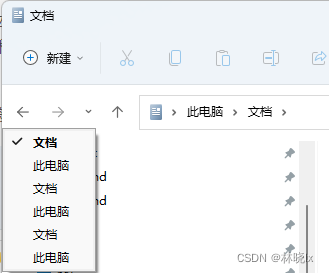
Among them, forward , Backward operation , You can click on the triangle to see a list , Click to enter the folder , The list will record the navigation history , Even if you repeatedly enter the same folder , The list will still be recorded , Here's the picture :
Then we can analyze and abstract out two variables :
- A variable used to store the actual navigation (navigationStack)
- Another variable for storing navigation history (navigationHistoryStack)
The navigation stack is used to store the information of each browse folder , These folders are spliced together to form the current path , A set of simple <li> Element navigates the stack by binding , You can form an address bar (web It's also called breadcrumb navigation in the world ) 了 .
navigationStack It's actually a stack , The first is the second (FILO) principle
Navigation history simply records the user's operation track , Will not be affected by the navigation target , As just mentioned , Even if you repeatedly enter the same folder , The list will still be recorded
navigationHistoryStack It's actually a queue , First in, first out (FIFO) principle
Next, let's start the code
So let's just create a new one WinUI3 project , Name it ExplorerNavigation
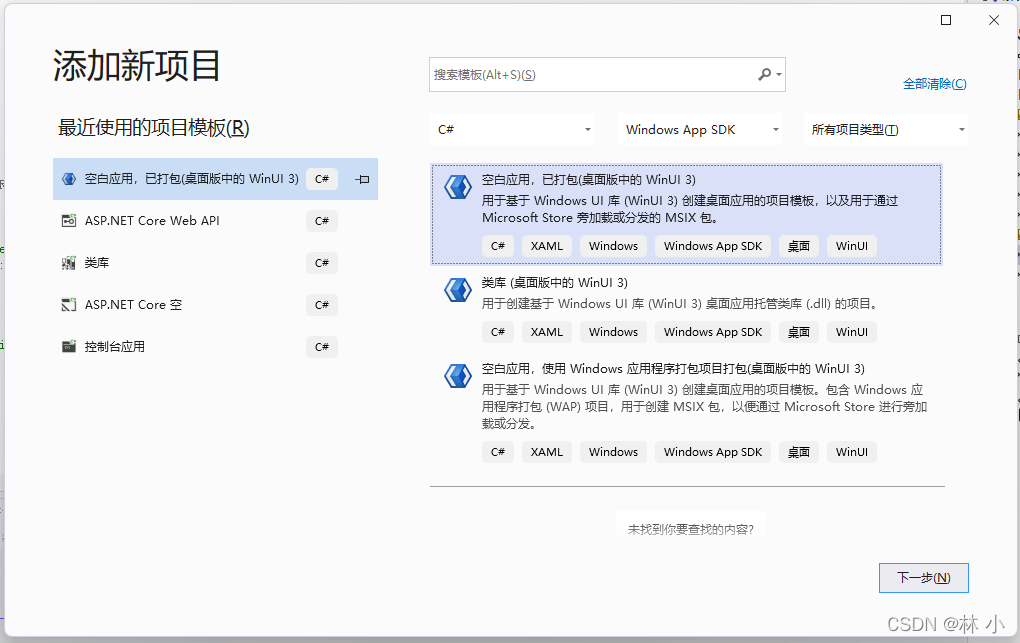
Create a new one ObservableCollection<T> Derived types of ObservableCollectionEx<T>, Then implement :
- push() Method can add one or more elements to the end of the array
- shift() Method to delete the first element in the array
- unshift() Method can add one or more elements to the front of the array
- pop() Method deletes the last element in the array
as well as ForEach() Traverse , and IndexOf() Query corner marks and other common methods :
public class ObservableCollectionEx<T> : ObservableCollection<T>
    {
        public ObservableCollectionEx() : base()
        {

        }
        public ObservableCollectionEx(IEnumerable<T> collection) : base(collection)
        {

        }

        public ObservableCollectionEx(List<T> list) : base(list)
        {

        }


        public void ForEach(Action<T> action)
        {
            for (int index = 0; index < this.Count; ++index)
                action(this[index]);
        }

        public int IndexOf(Predicate<T> match)
        {
            var startIndex = 0;
            for (int index = startIndex; index < this.Count; ++index)
            {
                if (match(this[index]))
                {
                    return index;
                }
            }
            return -1;

        }

        public void Shift()
        {
            if (this.Count == 0)
            {
                return;
            }
            this.Remove(this.First());
        }

        public void Unshift(T item)
        {
            this.Insert(0, item);
        }

        public void Pop()
        {
            if (this.Count == 0)
            {
                return;
            }
            this.Remove(this.Last());
        }

        public void Push(T item)
        {
            this.Add(item);
        }
newly build ExplorerViewModel type , It will be treated as having Explorer The basis of the page of navigation function ViewModel
establish NavigationStack、NavigationHistoryStack Object and initialize it in the constructor :
        public ExplorerViewModel()
        {
            NavigationStack = new ObservableCollectionEx<IExplorerItem>();
            NavigationHistoryStack = new ObservableCollectionEx<IExplorerItem>();
        }

        private ObservableCollectionEx<IExplorerItem> _navigationStack;

        public ObservableCollectionEx<IExplorerItem> NavigationStack
        {
            get { return _navigationStack; }
            set
            {
                _navigationStack = value;
                OnPropertyChanged(nameof(NavigationStack));
            }
        }

        private ObservableCollectionEx<IExplorerItem> _navigationHistoryStack;

        public ObservableCollectionEx<IExplorerItem> NavigationHistoryStack
        {
            get { return _navigationHistoryStack; }
            set
            {
                _navigationHistoryStack = value;
                OnPropertyChanged(nameof(NavigationHistoryStack));
            }
        }
Two 、 Folder jump principle
Let's first look at the following data structure
    public interface IExplorerItem
    {
        ObservableCollection<IExplorerItem> Children { get; set; }
        bool IsCurrent { get; set; }
        bool IsExpanded { get; set; }
        string Name { get; set; }
        string Path { get; set; }
        List<string> PathStack { get; }
        ExplorerItemType Type { get; set; }
    }
IExplorerItem Is the defined directory tree description class , Now suppose we have a pile of file trees with a length like this :
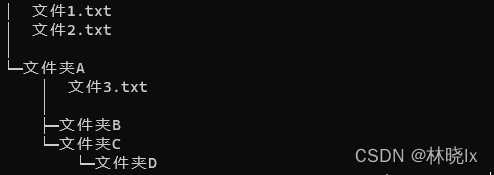
Then the corresponding directory tree object is :
        IExplorerItem root = new ExplorerItem()
        {
            Children = new ObservableCollection<IExplorerItem>() {
                    new ExplorerItem() {
                        Children = new ObservableCollection<IExplorerItem>() {

                            new ExplorerItem() {
                                Name = " Folder B",
                                Path = " My network disk / Folder A/ Folder B",
                                Type = ExplorerItemType.Folder

                             },
                            new ExplorerItem() {
                                Children = new ObservableCollection<IExplorerItem>() {

                                    new ExplorerItem() {
                                        Name = " Folder D",
                                        Path = " My network disk / Folder A/ Folder C/ Folder D",
                                        Type = ExplorerItemType.Folder

                                     },
                                },
                                Name = " Folder C",
                                Path = " My network disk / Folder A/ Folder C",
                                Type = ExplorerItemType.Folder

                             },
                            new ExplorerItem() {

                                Name = " file 3",
                                Path = " My network disk / Folder A/ file 3",
                                Type = ExplorerItemType.File

                            }

                        },
                        Name = " Folder A",
                        Path = " My network disk / Folder A",
                        Type = ExplorerItemType.Folder

                    },
                    new ExplorerItem() {

                        Name = " file 1",
                        Path = " My network disk / file 1",
                        Type = ExplorerItemType.File

                    },
                    new ExplorerItem() {

                        Name = " file 2",
                        Path = " My network disk / file 2",
                        Type = ExplorerItemType.File

                    }
                },
            Name = " My network disk ",
            Path = " My network disk ",
            Type = ExplorerItemType.Folder
        };
3、 ... and 、 Write tree structure interface :
App.cs Set dependency injection in
 public App()
        {
            this.InitializeComponent();
            InitializeComponent();

            // Register services
            if (!_initialized)
            {
                _initialized = true;
                Ioc.Default.ConfigureServices(
                    new ServiceCollection()
                    //ViewModels
                    .AddSingleton<MainPageViewModel>()
                    .BuildServiceProvider());
            }

        }
newly build MainPageViewModel.cs
stay MainWindow.xaml.cs Bind the context object of the page to MainPageViewModel
   public MainWindow()
        {
            this.InitializeComponent();
            this.MainFrame.DataContext = Ioc.Default.GetRequiredService<MainPageViewModel>();
        }
stay MainWindow.xaml Write a tree control in
                    <TreeView

                        ItemsSource="{Binding RootExplorerItems}" SelectedItem="{Binding CurrentExplorerItem ,Mode=TwoWay}"
                              ItemInvoked="TreeView_ItemInvoked"
                              SelectionMode="Single"
                              Margin="0,12"
                    >
                        <TreeView.ItemTemplate>
                            <DataTemplate
                                x:DataType="model:ExplorerItem">
                                <TreeViewItem AutomationProperties.Name="{Binding Name}"
                                              ItemsSource="{Binding Children}" IsExpanded="True" >

                                    <StackPanel Orientation="Horizontal">
                                        <Image Width="20" Source="/Assets/folder.png"  Visibility="{Binding Type, Converter={StaticResource isValueToVisibilityConverter}, ConverterParameter=Folder}"/>
                                        <Image Width="20" Source="/Assets/file.png"  Visibility="{Binding Type, Converter={StaticResource isValueToVisibilityConverter}, ConverterParameter=File}"/>
                                        <TextBlock Margin="0,0,10,0"/>
                                        <TextBlock Style="{StaticResource NavigationTextBlockStyle}"

                                                   Text="{Binding Name}" />
                                    </StackPanel>
                                </TreeViewItem>
                            </DataTemplate>
                        </TreeView.ItemTemplate>

                    </TreeView>
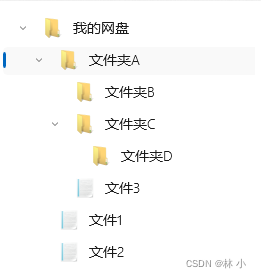
Presentation interface
Four 、 Write navigation logic
Navigation stack processing method :NavigationTo(IExplorerItem folder)
Just now we analyzed the principle of navigation , The function of the navigation stack is to form an address , We define a navigation stack :
- Determine whether the current page is in the navigation stack
- if , Pop up to the position of the target in the navigation stack
- If no , Then press into the navigation stack
among ToFolder Method is used to actually navigate and refresh the page , Later on
        public virtual void NavigationTo(IExplorerItem folder)
        {
            DealWithNavigationStack(folder);
            if (ToFolder(folder))
            {
                NavigationHistoryStack.ForEach((element) =>
                {
                    element.IsCurrent = false;
                });
                folder.IsCurrent = true;
                PushNavigationHistoryStack(folder);
            }
        }
“ Up ” Navigation method :NavigationBack()
The upward action belongs to a specific navigation stack processing :
- Pop up the top entry directly ,
- Get the top entry and navigate
        private void NavigationBack()
        {
            if (NavigationStack.Count == 1)
            {
                return;
            }
            NavigationStack.Pop();
            var lastItem = NavigationStack.LastOrDefault();
            if (lastItem == null)
            {
                return;
            }
            if (ToFolder(lastItem))
            {

                NavigationHistoryStack.ForEach((element) =>
                {
                    element.IsCurrent = false;
                });
                lastItem.IsCurrent = true;

                PushNavigationHistoryStack(lastItem);
            }
        }
Jump method : ToFolder,
Later, many methods refer to this method , This function simply performs a jump , Pass in the file description object , Execute navigation , Refresh the page , return bool Value represents success or failure :
        public virtual bool ToFolder(IExplorerItem item)
        {
            if (item == null || item.Path == CurrentExplorerItem.Path)
            {
                return false;
            }

            var currentExplorerItem = NavigationStack.FirstOrDefault(c => c.Path == item.Path);

            if (currentExplorerItem == null)
            {
                return false;
            }

            CurrentExplorerItem = currentExplorerItem;
            return true;
        }
5、 ... and 、 Write historical navigation processing logic
“ back off ” Method : NavigationHistoryBack()
- First, determine where the current page is in the history navigation
- When you get the corner marker +1( Because it's a queue , So the earlier the corner marker is, the bigger it is ), Get the last page entry in the history navigation queue , And execute the navigation method
        private void NavigationHistoryBack()
        {
            var currentIndex = NavigationHistoryStack.IndexOf(
              (c) => c.IsCurrent
            );
            if (currentIndex < NavigationHistoryStack.Count - 1)
            {
                var forwardIndex = currentIndex + 1;

                var folder = NavigationHistoryStack[forwardIndex];
                DealWithNavigationStack(folder);

                if (ToFolder(folder))
                {
                    NavigationHistoryStack.ForEach((element) =>
                    {
                        element.IsCurrent = false;
                    });
                    NavigationHistoryStack[forwardIndex].IsCurrent = true;
                }
            }
        }
“ Forward ” Method :NavigationHistoryForward()
- First, determine where the current page is in the history navigation
- When you get the corner marker -1( Because it's a queue , So the later the angle is, the smaller the angle is ), Get the previous page entry in the history navigation queue , And execute the navigation method
        private void NavigationHistoryForward()
        {

            var currentIndex = NavigationHistoryStack.IndexOf(
              (c) => c.IsCurrent
            );
            if (currentIndex > 0)
            {
                var forwardIndex = currentIndex - 1;

                var folder = NavigationHistoryStack[forwardIndex];
                DealWithNavigationStack(folder);

                if (ToFolder(folder))
                {
                    NavigationHistoryStack.ForEach((element) =>
                    {
                        element.IsCurrent = false;
                    });
                    NavigationHistoryStack[forwardIndex].IsCurrent = true;
                }
            }
        }
Then we need a way , Used to display in the history queue ( At present ) label :
        public virtual bool GetIsCurrentHistoryNavigationItem(IExplorerItem item)
        {
            var result = item.IsCurrent;
            return result;
        }
6、 ... and 、 Write the navigation bar interface :
stay MainPageViewModel.cs Three are defined in Command Button binding for the front end
        public RelayCommand NavigationHistoryBackCommand { get; private set; }
        public RelayCommand NavigationHistoryForwardCommand { get; private set; }
        public RelayCommand NavigationBackCommand { get; private set; }

        public ExplorerViewModel()
        {
            NavigationHistoryBackCommand = new RelayCommand(NavigationHistoryBack);
            NavigationHistoryForwardCommand = new RelayCommand(NavigationHistoryForward);
            NavigationBackCommand = new RelayCommand(NavigationBack);
        }
stay MainWindow.xaml in To write 3 Button “ Forward ”,“ back off ”,“ Up ”, And bind to the corresponding Command On
<StackPanel Orientation="Horizontal" >
<Button Style="{StaticResource NavigationBarButtonStyle}" Command="{Binding NavigationHistoryBackCommand}" Margin="10">
<FontIcon Style="{StaticResource NavigationBarButtonTextStyle}" Glyph=""/>
</Button>
<Button Style="{StaticResource NavigationBarButtonStyle}" Command="{Binding NavigationHistoryForwardCommand}" Margin="10" >
<FontIcon Style="{StaticResource NavigationBarButtonTextStyle}" Glyph=""/>
</Button>
<Button Style="{StaticResource NavigationBarButtonStyle}" Command="{Binding NavigationBackCommand}" Margin="10" >
<FontIcon Style="{StaticResource NavigationBarButtonTextStyle}" Glyph=""/>
</Button>
</StackPanel>
stay MainPageViewModel.cs In the definition of PathStack
        private ObservableCollection<string> _pathStack;

        public ObservableCollection<string> PathStack
        {
            get { return _pathStack; }
            set
            {
                _pathStack = value;
                OnPropertyChanged(nameof(PathStack));

            }
        }
stay MainWindow.xaml Write a BreadcrumbBar As a navigation bar input box
                        <BreadcrumbBar VerticalAlignment="Center"  HorizontalAlignment="Stretch" ItemsSource="{Binding PathStack}">
                        </BreadcrumbBar>
Presentation interface :

stay MainPageViewModel.cs In the definition of CurrentFileInfos As a list of files under the current path , Definition SelectedFileInfo As the currently selected file .
  private ObservableCollectionEx<IFileInfo> _currentFileInfos;

        public ObservableCollectionEx<IFileInfo> CurrentFileInfos
        {
            get { return _currentFileInfos; }
            set
            {
                _currentFileInfos = value;
                OnPropertyChanged(nameof(CurrentFileInfos));
            }
        }


        private IFileInfo _selectedFileInfo;

        public IFileInfo SelectedFileInfo
        {
            get { return _selectedFileInfo; }
            set
            {
                _selectedFileInfo = value;
                OnPropertyChanged(nameof(SelectedFileInfo));
            }
        }
stay MainWindow.xaml Written in GridView As a display of the contents of the catalogue
                    <!--File Content-->


                    <GridView
                                  x:Name="BasicGridView"
                                  IsItemClickEnabled="True"
                                  ItemsSource="{Binding CurrentFileInfos}"

                                  SelectedItem="{Binding SelectedFileInfo}"
                                  ItemClick="BasicGridView_ItemClick"
                                  SelectionMode="Single">
                        <GridView.ItemContainerStyle>
                            <Style TargetType="GridViewItem">
                                <Setter Property="Margin" Value="5, 7, 5, 7"/>
                            </Style>
                        </GridView.ItemContainerStyle>

                        <GridView.ItemTemplate>
                            <DataTemplate>
                                <Grid Width="100" Height="120" DoubleTapped="Grid_DoubleTapped">
                                    <Grid.RowDefinitions>
                                        <RowDefinition></RowDefinition>
                                        <RowDefinition Height="Auto"></RowDefinition>
                                    </Grid.RowDefinitions>
                                    <Image Grid.Row="0" Visibility="{Binding Type, Converter={StaticResource isValueToVisibilityConverter}, ConverterParameter=1}" Width="90" Source="/Assets/folder.png"/>
                                    <Image Grid.Row="0" Visibility="{Binding Type, Converter={StaticResource isValueToVisibilityConverter}, ConverterParameter=2}" Width="90" Source="/Assets/file.png"/>
                                    <TextBlock HorizontalAlignment="Center" Grid.Row="1" Text="{Binding FileName, Converter={StaticResource absoluteNameConverter}}"  Style="{ThemeResource CaptionTextBlockStyle}"></TextBlock>
                                </Grid>
                            </DataTemplate>
                        </GridView.ItemTemplate>
                    </GridView>
When you double-click an item in the file area , You need to open the file , Or jump to the directory
stay MainWindow.xaml.cs Write the method of double-click event binding in
        private async void Grid_DoubleTapped(object sender, DoubleTappedRoutedEventArgs e)
        {

            var targetFile = (e.OriginalSource as FrameworkElement).DataContext as IFileInfo;
            if (targetFile == null)
            {
                return;
            }
            if (targetFile.Type == FileInfoType.Folder)
            {
                var targetFolder = (this.MainFrame.DataContext as MainPageViewModel).CurrentExplorerItem.Children.FirstOrDefault(c => c.Name == targetFile.FileName);
                if (targetFolder != null)
                {
                    (this.MainFrame.DataContext as MainPageViewModel).NavigationTo(targetFolder);

                }

            }
            else
            {

                ContentDialog subscribeDialog = new ContentDialog
                {
                    Title = $" You opened the file  [{targetFile.FileName}]",
                    CloseButtonText = " determine ",
                    DefaultButton = ContentDialogButton.Primary
                };
                subscribeDialog.XamlRoot = App.Window.Content.XamlRoot;
                ContentDialogResult result = await subscribeDialog.ShowAsync();

            }

        }
Presentation interface :

Final effect :
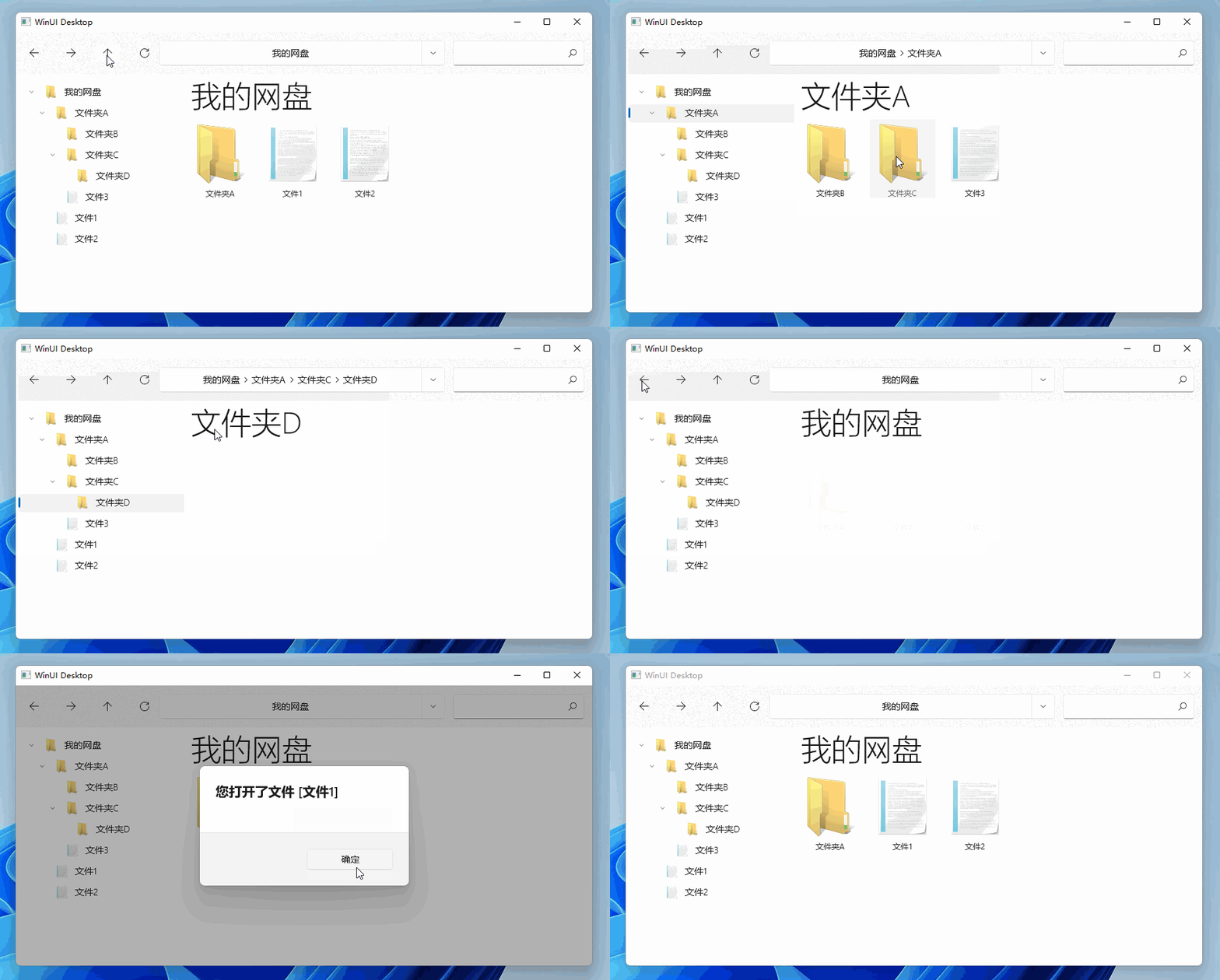
Code warehouse :
jevonsflash/ExplorerNavigation (github.com)
Conclusion :
This is a simple file navigation Demo, Can make not limited to local file resource manager , To replace Windows Huge and bloated explorer.exe, You can also make network disk client ,ftp Tools and other online oriented file management tools .WinUI3 Is the latest Microsoft desktop development framework , The code of this project can also be easily rewritten into Wpf perhaps UWP application .
Seven cattle cloud upload tool :
版权声明
本文为[Lin Xiao]所创,转载请带上原文链接,感谢
https://yzsam.com/2022/04/202204230449458663.html
边栏推荐
- Pixel 5 5g unlocking tutorial (including unlocking BL, installing edxposed and root)
- Unity rawimage background seamlessly connected mobile
- Implementation of switching windows and capturing data in selenium mode
- [timing] empirical evaluation of general convolution and cyclic networks for sequence modeling based on TCN
- Repair of self calibration SPC failure of Tektronix oscilloscope dpo3054
- redis和mysql区别
- Kotlin. The binary version of its metadata is 1.6.0, expected version is 1.1.15.
- Graduation project
- Learning Android from scratch -- Introduction
- C# List字段排序含有数字和字符
猜你喜欢
Pixel 5 5g unlocking tutorial (including unlocking BL, installing edxposed and root)

View analysis of scenic spots in ArcGIS
![Solve valueerror: argument must be a deny tensor: 0 - got shape [198602], but wanted [198602, 16]](/img/99/095063b72390adea6250f7b760d78c.png)
Solve valueerror: argument must be a deny tensor: 0 - got shape [198602], but wanted [198602, 16]

Shanghai Hangxin technology sharing 𞓜 overview of safety characteristics of acm32 MCU

CLion+OpenCV identify ID number - detect ID number
Innovation training (IV) preliminary preparation - server

Innovative practice of short video content understanding and generation technology in meituan

Innovation training (VI) routing
Small volume Schottky diode compatible with nsr20f30nxt5g
Learning Android II from scratch - activity
随机推荐
Recommended scheme for national production of electronic components for wireless charging
Spark small case - RDD, spark SQL
/etc/bash_ completion. D directory function (the user logs in and executes the script under the directory immediately)
Record the ThreadPoolExecutor main thread waiting for sub threads
拼了!两所A级大学,六所B级大学,纷纷撤销软件工程硕士点!
Spark case - wordcount
leetcode008--实现strStr()函数
Code007 -- determine whether the string in parentheses matches
Alibaba tip: it is better to create threads manually
IEEE Transactions on industrial information (TII)
js 判斷數字字符串中是否含有字符
Druid -- JDBC tool class case
Unity rawimage background seamlessly connected mobile
Spell it! Two A-level universities and six B-level universities have abolished master's degree programs in software engineering!
Com alibaba. Common methods of fastjson
What is a data island? Why is there still a data island in 2022?
js 判断数字字符串中是否含有字符
Repair of self calibration SPC failure of Tektronix oscilloscope dpo3054
【数据库】MySQL基本操作(基操~)
Detailed explanation of the differences between TCP and UDP