当前位置:网站首页>Introduction to GUI programming swing
Introduction to GUI programming swing
2022-04-23 08:43:00 【Season white September】
List of articles
3、swing
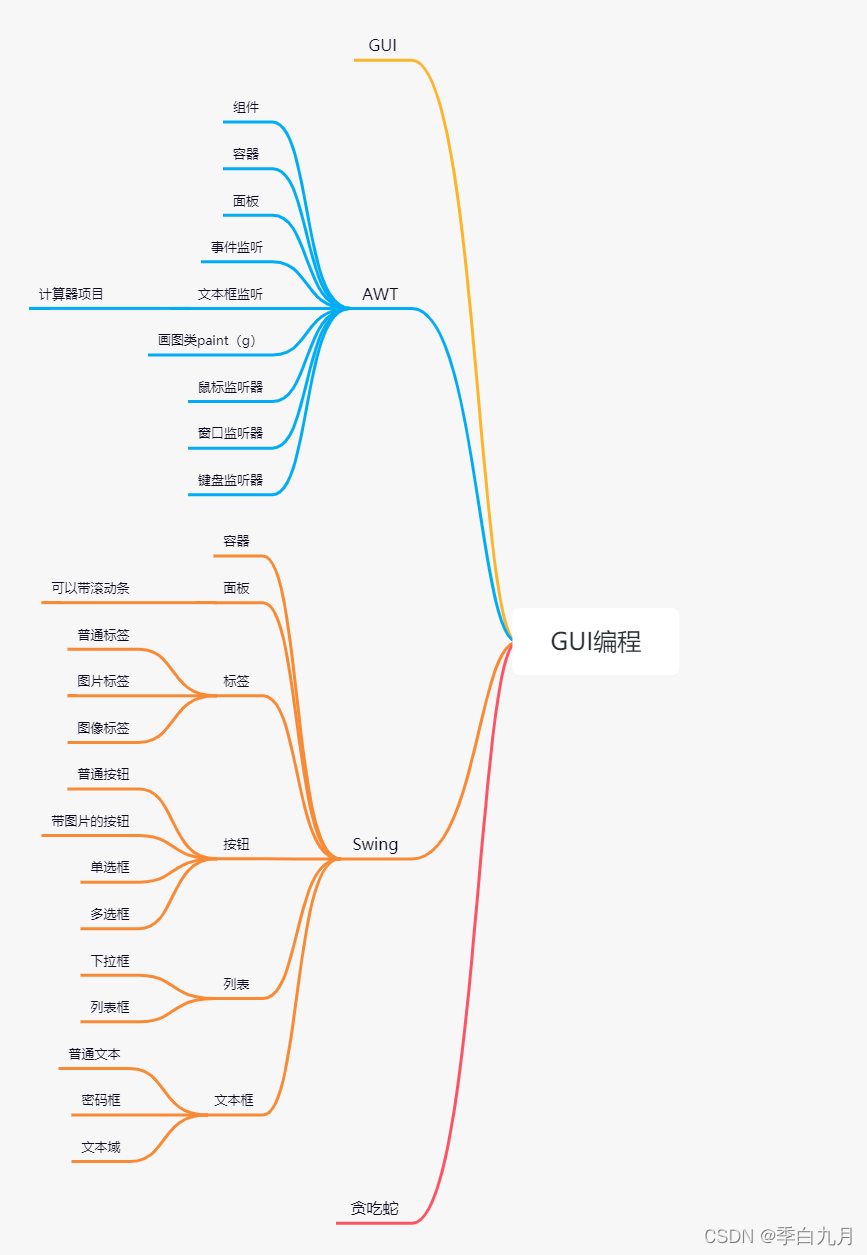
relative AWT Image programming will be more advanced ,JFrame
3.1 window 、 panel
package com.zhang.lesson04;

import javax.swing.*;
import java.awt.*;

//init(); initialization
public class JFrameDemo {

    public void init(){

        // Top window
        JFrame jf = new JFrame(" This is a JFrame window ");
        jf.setVisible(true);
        jf.setBounds(100,100,200,200);
        jf.setBackground(Color.pink);// No display   Background color
        // Set text  Jlabel
        JLabel label = new JLabel(" Welcome here ");
        jf.add(label);

        // Container instantiation

        // Closing event
        jf.setDefaultCloseOperation(WindowConstants.EXIT_ON_CLOSE);

    }
    public static void main(String[] args) {

        // Create a window
        new JFrameDemo().init();
    }
}

The label is centered
package com.zhang.lesson04;

import javax.swing.*;
import java.awt.*;

public class JFrameDemo02 {

    public static void main(String[] args) {

        new MyJFrame2().init();
    }
}
class MyJFrame2 extends JFrame{

    public void init(){

        JLabel label = new JLabel(" Welcome here ");
        this.add(label);
        // Center text labels
        label.setHorizontalAlignment(SwingConstants.CENTER);
        this.setVisible(true);
        this.setBounds(10,10,200,300);
        // Get the container
        Container container = this.getContentPane();
        container.setBackground(Color.blue);
    }
}

Closing event
Easier
    // Closing event
    jf.setDefaultCloseOperation(WindowConstants.EXIT_ON_CLOSE);

}
3.2 Popup
JDialog, Used to be ejected , By default, there is a close event
Warning

reason : The pop-up window has been closed by default , Repeatedly set
package com.zhang.lesson04;

import javax.swing.*;
import java.awt.*;
import java.awt.event.ActionEvent;
import java.awt.event.ActionListener;

// main window
public class DialogDemo extends JFrame {

    public DialogDemo()  {

        this.setVisible(true);
        this.setSize(700,500);

        // this.setDefaultCloseOperation(WindowConstants.EXIT_ON_CLOSE);
        //JFrame Put things , Containers
        Container container = this.getContentPane();
        // Absolute layout
        container.setLayout(null);
        // Button
        JButton button = new JButton(" Click to pop up a dialog box ");// establish
        button.setBounds(30,30,200,50);
        // When you click this button , Pop up a pop-up window
        button.addActionListener(new ActionListener() {
    // Monitor
            @Override
            public void actionPerformed(ActionEvent e) {

                // Popup
                new MyDialogDemo();
            }
        });
        container.add(button);
    }

    public static void main(String[] args) {

        new DialogDemo();
    }
}
// Pop up window
class MyDialogDemo extends JDialog{

    public MyDialogDemo() {

        this.setVisible(true);
        this.setBounds(100,100,500,500);
        this.setDefaultCloseOperation(WindowConstants.EXIT_ON_CLOSE);
        Container container = this.getContentPane();
        container.setLayout(null);
        container.add(new Label(" Learn together java"));
    }
}

3.3 label
label
new JLabel("xxx");
ICON
Icon
package com.zhang.lesson04;

import javax.swing.*;
import java.awt.*;

// Icon , Need to implement class ,Frame Inherit
public class IconDemo extends JFrame implements Icon {


    private  int width;
    private  int height;
    public IconDemo(){
    }// No arguments structure


    public IconDemo(int width,int height){

        this.width=width;
        this.height=height;
    }

    public void init(){

        IconDemo iconDemo = new IconDemo(15, 15);
        // The icon is on the label , It can also be placed on the button !
        JLabel label = new JLabel("icontest", iconDemo, SwingConstants.CENTER);
        Container container = getContentPane();
        container.add(label);

        this.setVisible(true);
        this.setDefaultCloseOperation(WindowConstants.EXIT_ON_CLOSE);
    }
    public static void main(String[] args) {

        new IconDemo().init();
    }

    @Override
    public void paintIcon(Component c, Graphics g, int x, int y) {

        g.fillOval(x,y,width,height);
    }

    @Override
    public int getIconWidth() {

        return this.width;
    }

    @Override
    public int getIconHeight() {

        return this.height;
    }
}

picture
package com.zhang.lesson04;

import sun.misc.PostVMInitHook;

import javax.swing.*;
import java.awt.*;
import java.net.URL;

public class ImageIconDemo extends JFrame {

    public ImageIconDemo()  {

        // Get the address of the picture
        JLabel label = new JLabel("ImageIcon");
        URL url = ImageIconDemo.class.getResource(" Protogod .png");
        // obtain   At present class This class   The following peer resources   Of   Name file
        ImageIcon imageIcon = new ImageIcon(url);
        label.setIcon(imageIcon);
        label.setHorizontalAlignment(SwingConstants.CENTER);
        Container container = getContentPane();
        container.add(label);

        setBounds(100,100,200,200);
        setVisible(true);
        setDefaultCloseOperation(WindowConstants.EXIT_ON_CLOSE);
    }

    public static void main(String[] args) {

        new ImageIconDemo();
    }
}

3.4 panel
JPanel
package com.zhang.lesson05;

import javax.swing.*;
import java.awt.*;

public class JPanelDemo extends JFrame {

    public JPanelDemo() {

        Container container = this.getContentPane();
        container.setLayout(new GridLayout(2,1,10,10));
        // The following parameters mean , Spacing between each panel
        JPanel panel1 = new JPanel(new GridLayout(1,3));
        JPanel panel2 = new JPanel(new GridLayout(1,2));
        JPanel panel3 = new JPanel(new GridLayout(2,1));
        JPanel panel4 = new JPanel(new GridLayout(3,2));

        panel1.add(new JButton("1"));
        panel1.add(new JButton("1"));
        panel1.add(new JButton("1"));
        panel2.add(new JButton("2"));
        panel2.add(new JButton("2"));
        panel3.add(new JButton("3"));
        panel3.add(new JButton("3"));
        panel4.add(new JButton("4"));
        panel4.add(new JButton("4"));
        panel4.add(new JButton("4"));
        panel4.add(new JButton("4"));
        panel4.add(new JButton("4"));
        panel4.add(new JButton("4"));

        container.add(panel1);
        container.add(panel2);
        container.add(panel3);
        container.add(panel4);
        this.setDefaultCloseOperation(WindowConstants.EXIT_ON_CLOSE);
        this.setVisible(true);
        this.setSize(500,500);
    }

    public static void main(String[] args) {


        new JPanelDemo();
    }
}

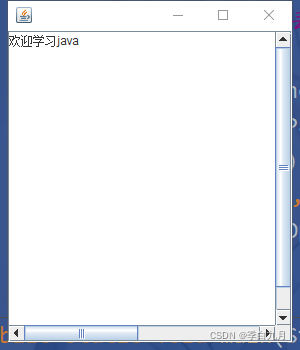
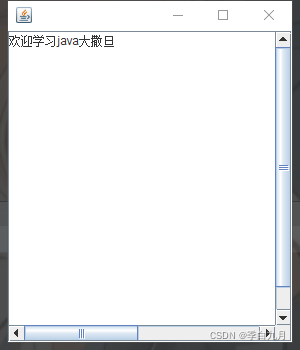
JScrollPanel A drop-down box , Realization of cross pull frame
package com.zhang.lesson05;

import javax.swing.*;
import java.awt.*;

public class JScrollDemo extends JFrame {

    public JScrollDemo()  {

        Container container = this.getContentPane();

        // Text domain
        JTextArea textArea = new JTextArea(20, 50);
        // Each line can only write 20 A digital ,50 Column
        textArea.setText(" Welcome to learn java");// Set the default text field
        //d Throw it into the panel , Then throw the panel into   In the container
        //Scroll panel
        JScrollPane scrollPane = new JScrollPane(textArea);
        container.add(scrollPane);// A drop-down box , Realization of cross pull frame
        this.setVisible(true);
        this.setBounds(100,100,300,350);
        this.setDefaultCloseOperation(WindowConstants.EXIT_ON_CLOSE);
    }

    public static void main(String[] args) {

        new JScrollDemo();
    }
}
3.5 Button
Picture button
package com.zhang.lesson05;

import javax.swing.*;
import java.awt.*;
import java.net.URL;

public class JButtonDemo01 extends JFrame {

    public JButtonDemo01()  {

        Container container = this.getContentPane();
        URL resource = JButtonDemo01.class.getResource(" Protogod .png");
        Icon icon=new ImageIcon(resource);// Turn the picture into an icon
        // Put the icon on the button
        JButton button = new JButton();
        button.setIcon(icon);

        button.setToolTipText(" Picture button ");// Mouse on top   The text... Will be displayed

        // Put the button on the container
        container.add(button);

        this.setVisible(true);
        this.setBounds(500,300,260,260);
        this.setDefaultCloseOperation(WindowConstants.EXIT_ON_CLOSE);
    }

    public static void main(String[] args) {

        new JButtonDemo01();
    }
}

Radio button ( grouping )
package com.zhang.lesson05;

import javax.swing.*;
import java.awt.*;
import java.net.URL;

public class JButtonDemo02 extends JFrame {

    public JButtonDemo02()  {

        Container container = this.getContentPane();
        URL resource = JButtonDemo01.class.getResource(" Protogod .png");
        Icon icon=new ImageIcon(resource);// Turn the picture into an icon

        // Radio buttons
        JRadioButton jRadioButton01 = new JRadioButton("JRadioButton01");
        JRadioButton jRadioButton02 = new JRadioButton("JRadioButton02");
        JRadioButton jRadioButton03 = new JRadioButton("JRadioButton03");
        // Because only one radio box can be selected , Divide into groups , You can only choose one from a group
        ButtonGroup group = new ButtonGroup();
        group.add(jRadioButton01);
        group.add(jRadioButton02);
        group.add(jRadioButton03);

        container.add(jRadioButton01,BorderLayout.CENTER);
        container.add(jRadioButton02,BorderLayout.NORTH);
        container.add(jRadioButton03,BorderLayout.SOUTH);
        this.setVisible(true);
        this.setBounds(500,300,260,260);
        this.setDefaultCloseOperation(WindowConstants.EXIT_ON_CLOSE);
    }

    public static void main(String[] args) {

        new JButtonDemo02();
    }
}

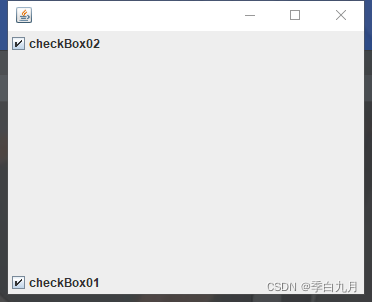
Check button
package com.zhang.lesson05;

import javax.swing.*;
import java.awt.*;
import java.net.URL;

public class JButtonDemo03 extends JFrame {

    public JButtonDemo03()  {

        Container container = this.getContentPane();
        URL resource = JButtonDemo01.class.getResource(" Protogod .png");
        Icon icon=new ImageIcon(resource);// Turn the picture into an icon

        // Checkbox
        JCheckBox checkBox01 = new JCheckBox("checkBox01");
        JCheckBox checkBox02 = new JCheckBox("checkBox02");

        container.add(checkBox01,BorderLayout.SOUTH);
        container.add(checkBox02,BorderLayout.NORTH);


        this.setVisible(true);
        this.setBounds(500,300,260,260);
        this.setDefaultCloseOperation(WindowConstants.EXIT_ON_CLOSE);
    }

    public static void main(String[] args) {

        new JButtonDemo03();
    }
}
3.6 list
A drop-down box JComboBox
package com.zhang.lesson06;

import javax.swing.*;
import java.awt.*;

public class TestComboboxDemo01 extends JFrame {

    public TestComboboxDemo01()  {

        Container container = getContentPane();

        JComboBox status = new JComboBox<>();
        status.addItem(null);
        status.addItem(" Is hit ");
        status.addItem(" It's off the shelf ");
        status.addItem(" To be shown soon ");


        container.add(status);
        this.setVisible(true);
        this.setSize(500,350);
        this.setDefaultCloseOperation(WindowConstants.EXIT_ON_CLOSE);
    }

    public static void main(String[] args) {

        new TestComboboxDemo01();
    }
}

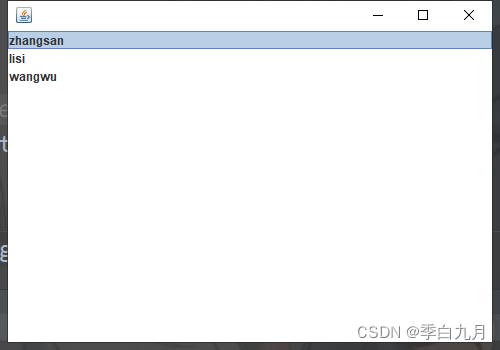
List box
Application scenarios
- Select region , Or some single option
- list , Display information , It's usually dynamic expansion
package com.zhang.lesson06;

import javax.swing.*;
import java.awt.*;
import java.util.Vector;

public class TestComboboxDemo02 extends JFrame {

    public TestComboboxDemo02()  {

        Container container = getContentPane();

       // Generate the contents of the list   Sparse array , compressed data
        // String[] contents={"1","2","3"};

        Vector contents = new Vector();
        // What needs to be put in the list
        JList jList = new JList(contents);

        contents.add("zhangsan");
        contents.add("lisi");
        contents.add("wangwu");
        container.add(jList);
        this.setVisible(true);
        this.setSize(500,350);
        this.setDefaultCloseOperation(WindowConstants.EXIT_ON_CLOSE);
    }

    public static void main(String[] args) {

        new TestComboboxDemo02();
    }
}
3.7 The text box
The text box JTextField
package com.zhang.lesson06;

import javax.swing.*;
import java.awt.*;
import java.util.Vector;

public class TestTextDemo01 extends JFrame {

    public TestTextDemo01()  {

        Container container = getContentPane();

        JTextField textField = new JTextField("hello");
        JTextField textField2 = new JTextField("world",20);//columns Maximum characters allowed
        container.add(textField,BorderLayout.NORTH);
        container.add(textField2,BorderLayout.SOUTH);
        this.setVisible(true);
        this.setSize(500,350);
        this.setDefaultCloseOperation(WindowConstants.EXIT_ON_CLOSE);
    }

    public static void main(String[] args) {

        new TestTextDemo01();
    }
}

Password box JPasswordField
package com.zhang.lesson06;

import javax.swing.*;
import java.awt.*;

public class TestTextDemo02 extends JFrame {

    public TestTextDemo02()  {

        Container container = getContentPane();

        JPasswordField passwordField = new JPasswordField();// Default ****
        passwordField.setEchoChar('*');
        container.add(passwordField);
        this.setVisible(true);
        this.setSize(500,350);
        this.setDefaultCloseOperation(WindowConstants.EXIT_ON_CLOSE);
    }

    public static void main(String[] args) {

        new TestTextDemo02();
    }
}

Text domain JTextArea
package com.zhang.lesson05;

import javax.swing.*;
import java.awt.*;

public class JScrollDemo extends JFrame {

    public JScrollDemo()  {

        Container container = this.getContentPane();

        // Text domain
        JTextArea textArea = new JTextArea(20, 50);
        // Each line can only write 20 A digital ,50 Column
        textArea.setText(" Welcome to learn java");// Set the default text field
        //d Throw it into the panel , Then throw the panel into   In the container
        //Scroll panel
        JScrollPane scrollPane = new JScrollPane(textArea);
        container.add(scrollPane);// A drop-down box , Realization of cross pull frame
        this.setVisible(true);
        this.setBounds(100,100,300,350);
        this.setDefaultCloseOperation(WindowConstants.EXIT_ON_CLOSE);
    }

    public static void main(String[] args) {

        new JScrollDemo();
    }
}
版权声明
本文为[Season white September]所创,转载请带上原文链接,感谢
https://yzsam.com/2022/04/202204230832523711.html
边栏推荐
- Redis master-slave server problem
- dataBinding中使用include
- Harbor企业级镜像管理系统实战
- mycat配置
- Notes on 30 steps of introduction to the Internet of things of yangtao electronics STM32 III. cubemx graphical programming and setting the IO port on the development board
- 1099 建立二叉搜索树 (30 分)
- 怎样读取Excel表格到数据库
- HAL库的RCC简介
- Excle plus watermark
- K210 learning notes (II) serial communication between k210 and stm32
猜你喜欢

cadence的工艺角仿真、蒙特卡洛仿真、PSRR

DJ音乐管理软件Pioneer DJ rekordbox

正点原子携手OneOS直播 OneOS系统教程全面上线

php基于哈希算法出现的强弱比较漏洞

洋桃电子STM32物联网入门30步笔记四、工程编译和下载

IDEA导入commons-logging-1.2.jar包

洋桃电子STM32物联网入门30步笔记一、HAL库和标准库的区别

After a circle, I sorted out this set of interview questions..
Idea import commons-logging-1.2 Jar package

Knowledge points and problem solutions related to information collection
随机推荐
PDF with watermark
bashdb下载安装
使用flask和h5搭建网站/应用的简要步骤
Overview of bus structure
Large amount of data submitted by form post
洋桃电子STM32物联网入门30步笔记四、工程编译和下载
Protobuf简介
DOM learning - add + - button
Use of Arthas in JVM tools
Complete binary search tree (30 points)
扣缴义务人
Shell script advanced
洋桃电子STM32物联网入门30步笔记三、新建CubeIDE工程和设置讲解
什么是RPC
匿名類型(C# 指南 基礎知識)
How to generate assembly file
RCC introduction of Hal Library
Consensus Token:web3.0生态流量的超级入口
应纳税所得额
关于数组复制问题